> ## Documentation Index
> Fetch the complete documentation index at: https://docs.asisso.com/llms.txt
> Use this file to discover all available pages before exploring further.
# Vobiz Integration
> Configure Vobiz for voice communication in Asisso
## Overview
Vobiz is a cloud-based telephony service provider that offers global reach with competitive pricing. Asisso's Vobiz integration provides reliable voice connectivity for your conversational AI agents.
## Prerequisites
Before setting up Vobiz integration, you'll need:
* A [Vobiz account](https://vobiz.ai)
* Auth ID and Auth Token from your Vobiz dashboard
* A Vobiz **Application** (optional — leave the field blank in Asisso and we'll auto-create one for you on save, with the `answer_url` pre-set)
* At least one Vobiz phone number
* Asisso instance running and accessible
## Configuration
### Step 1: Get Vobiz Credentials
1. Log in to your Vobiz dashboard
2. Find your **Auth ID** and generate an **Auth Token** for API access
3. (Optional) Navigate to the **Applications** section and create (or open) the application you'll use with Asisso, then copy its **Application ID**. Skip this if you want Asisso to auto-create the application for you on save.
4. Navigate to **Phone Numbers** and copy the numbers you plan to use
### Step 2: Configure in Asisso
1. Navigate to **/telephony-configurations** and click **Add configuration**
2. Select **Vobiz** as your provider
3. Enter your credentials:
* Auth ID
* Auth Token
* Application ID — *optional*. Leave blank and Asisso will auto-create a Vobiz Application on save (with the `answer_url` already configured) and store its Application ID on this configuration.
4. Click **Save Configuration**
5. Open the configuration you just created and add at least one **phone number** (with country code in E.164 format, e.g. `+1234567890`). The default caller ID is used for outbound calls.
If Asisso auto-created the Vobiz Application for you, you still need to
attach your Vobiz numbers to that application in the Vobiz Console under
**Applications**. The auto-created application is named
`asisso-` — its Application ID is shown on the saved
configuration.
### Step 3: Test Your Configuration
1. Create a test workflow
2. Click "Call" to verify connection
3. Check call logs for successful connection
## Inbound Calling Setup
Vobiz numbers don't carry an `answer_url` directly — the URL lives on a Vobiz **Application**, and each number is linked to one application. **When you save an inbound workflow on a phone number, Asisso automatically pushes the webhook URL to your Vobiz Application's `answer_url`** (provided the credentials are correct). If Asisso auto-created the application during configuration save, the `answer_url` is already set and this push is a no-op.
### Step 1: Link the Phone Number to Your Vobiz Application
1. Log in to your Vobiz Console and open the **Applications** section
2. Edit the application whose ID you configured in Asisso
3. Attach the phone number you want to use for inbound calls
4. Save
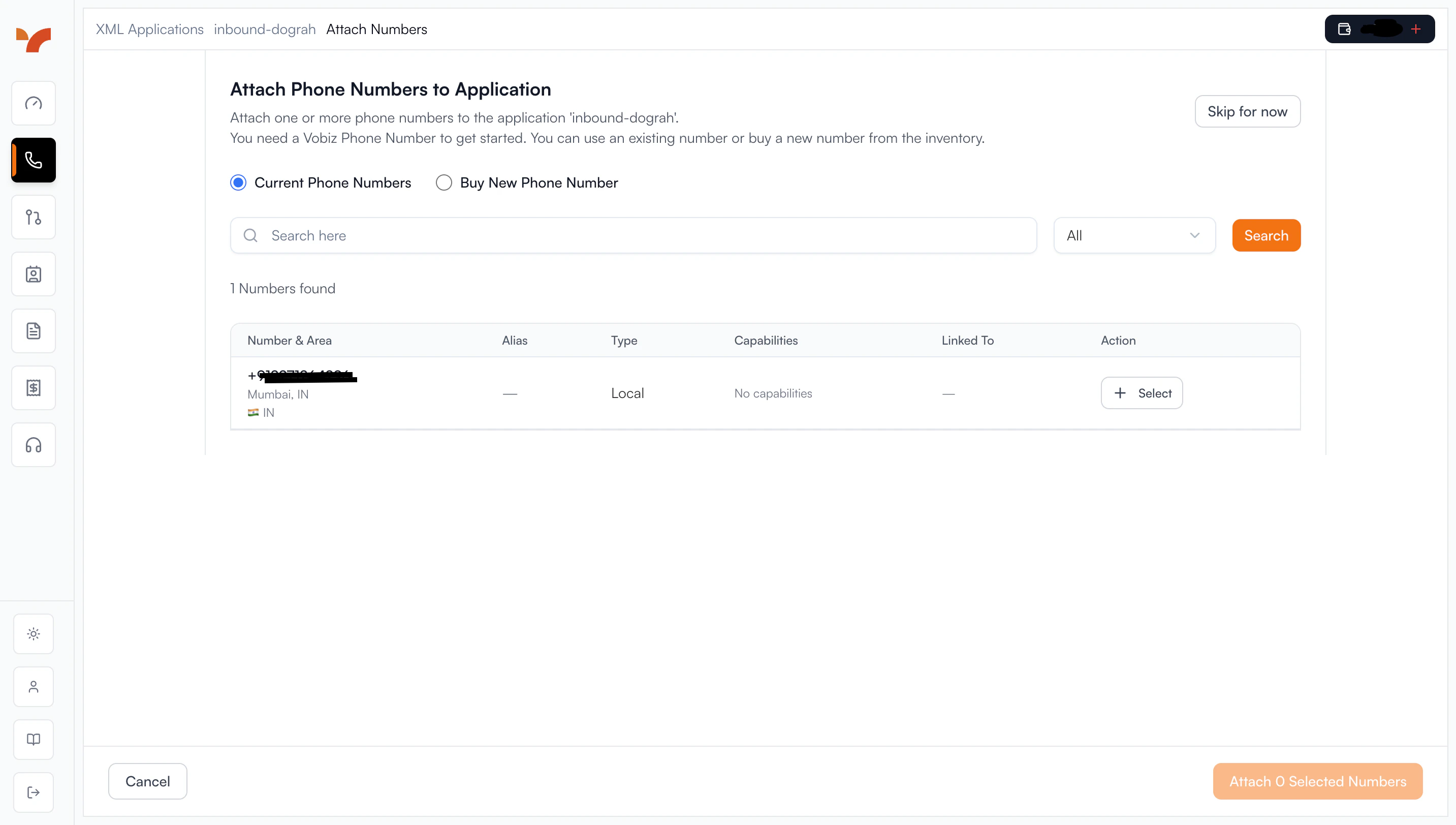 ### Step 2: Assign an Inbound Workflow to the Phone Number in Asisso
1. Go to **/telephony-configurations** and open your Vobiz configuration
2. In the **Phone numbers** section, edit the number that should receive inbound calls
3. Set its **Inbound workflow** to the agent that should answer
4. Save
### Step 3: Verify the Answer URL on the Vobiz Application
1. Open your Vobiz Console and navigate to **Applications**
2. Open the application whose ID you configured in Asisso
3. Confirm:
* **Answer URL** is set to: `https://api.asisso.com/api/v1/telephony/inbound/run`
* **Answer Method** is `POST`
Asisso pushed this URL automatically when you saved the inbound workflow
in Step 2. The same URL is shared across every number linked to that
application — Asisso routes each inbound call to the right agent based
on the called number's inbound workflow assignment. If the field is
empty, shows a different URL, or Asisso surfaced a sync warning on
save, the auto-push failed — most often because the Auth ID/Token or
Application ID in Asisso is incorrect. Paste the URL into the field
yourself, set the method to `POST`, and save.
### Step 4: Verify Setup
* Ensure your Asisso instance is publicly accessible
* Verify any firewalls allow Vobiz's webhook requests
### Test Inbound Calling
1. Call your configured Vobiz phone number from another phone
2. Verify your Asisso voice agent answers and responds
3. Check call logs in both Asisso dashboard and Vobiz dashboard
## Troubleshooting
Ensure phone numbers include country code in E.164 format: `+1234567890`
* Verify Auth ID and Auth Token are correct
* Check for extra spaces in credentials
* Ensure credentials haven't been regenerated in Vobiz dashboard
* Confirm your Auth Token matches exactly
* Verify the webhook URL is accessible from Vobiz servers
* Check if you're behind a proxy that modifies requests
* Verify WebSocket connection is established
* Check firewall rules for WebSocket traffic
* Ensure audio pipeline is configured correctly
* Verify the phone number is linked to the same Vobiz Application whose
ID you configured in Asisso - Confirm the called number exists in your
Asisso telephony configuration and has an **Inbound workflow** assigned
* After assigning the inbound workflow, confirm Asisso successfully
updated the application's `answer_url` (no warning shown on save) -
Verify Asisso instance is running and responding
* Confirm the phone number has an **Inbound workflow** assigned in
/telephony-configurations - Check webhook signature validation is working
(Auth Token in Asisso matches Vobiz dashboard) - Verify WebSocket connection
establishes successfully - Review call logs for error messages
## Best Practices
* Test your configuration with a single call before running campaigns
* Monitor Vobiz dashboard for usage and billing
* Keep your Auth Token secure and rotate it periodically
* Use a dedicated Vobiz Application for Asisso so the shared `answer_url` doesn't conflict with other systems
### Step 2: Assign an Inbound Workflow to the Phone Number in Asisso
1. Go to **/telephony-configurations** and open your Vobiz configuration
2. In the **Phone numbers** section, edit the number that should receive inbound calls
3. Set its **Inbound workflow** to the agent that should answer
4. Save
### Step 3: Verify the Answer URL on the Vobiz Application
1. Open your Vobiz Console and navigate to **Applications**
2. Open the application whose ID you configured in Asisso
3. Confirm:
* **Answer URL** is set to: `https://api.asisso.com/api/v1/telephony/inbound/run`
* **Answer Method** is `POST`
Asisso pushed this URL automatically when you saved the inbound workflow
in Step 2. The same URL is shared across every number linked to that
application — Asisso routes each inbound call to the right agent based
on the called number's inbound workflow assignment. If the field is
empty, shows a different URL, or Asisso surfaced a sync warning on
save, the auto-push failed — most often because the Auth ID/Token or
Application ID in Asisso is incorrect. Paste the URL into the field
yourself, set the method to `POST`, and save.
### Step 4: Verify Setup
* Ensure your Asisso instance is publicly accessible
* Verify any firewalls allow Vobiz's webhook requests
### Test Inbound Calling
1. Call your configured Vobiz phone number from another phone
2. Verify your Asisso voice agent answers and responds
3. Check call logs in both Asisso dashboard and Vobiz dashboard
## Troubleshooting
Ensure phone numbers include country code in E.164 format: `+1234567890`
* Verify Auth ID and Auth Token are correct
* Check for extra spaces in credentials
* Ensure credentials haven't been regenerated in Vobiz dashboard
* Confirm your Auth Token matches exactly
* Verify the webhook URL is accessible from Vobiz servers
* Check if you're behind a proxy that modifies requests
* Verify WebSocket connection is established
* Check firewall rules for WebSocket traffic
* Ensure audio pipeline is configured correctly
* Verify the phone number is linked to the same Vobiz Application whose
ID you configured in Asisso - Confirm the called number exists in your
Asisso telephony configuration and has an **Inbound workflow** assigned
* After assigning the inbound workflow, confirm Asisso successfully
updated the application's `answer_url` (no warning shown on save) -
Verify Asisso instance is running and responding
* Confirm the phone number has an **Inbound workflow** assigned in
/telephony-configurations - Check webhook signature validation is working
(Auth Token in Asisso matches Vobiz dashboard) - Verify WebSocket connection
establishes successfully - Review call logs for error messages
## Best Practices
* Test your configuration with a single call before running campaigns
* Monitor Vobiz dashboard for usage and billing
* Keep your Auth Token secure and rotate it periodically
* Use a dedicated Vobiz Application for Asisso so the shared `answer_url` doesn't conflict with other systems